Main features
Report an accident or track a case of illness. View the benefits paid, your premium invoices or the full details of your policy.
Access the LPP/BVG portal for your employees’ occupational pension benefits.
Get an overview of your situation, submit an accident or illness claim, view the benefits paid to your company, and check your insurance policy and premium invoices in just a few clicks.
Log in
The Corporate customer area is accessible online: So you do not need to install anything.
Simplified user interface, intuitive navigation and time-saving features.
Your access is protected by 2-way authentication via email or text message.
Easy to use – with dynamic information, enriched forms and explanatory videos.
Report an accident or track a case of illness. View the benefits paid, your premium invoices or the full details of your policy.
Access the LPP/BVG portal for your employees’ occupational pension benefits.



Would you like to benefit from our Corporate customer area? Simply fill in the form and we send you your personal access code.
Request access
Watch our video tutorials to learn how to use the essential features of the Corporate Customer Area in no time.
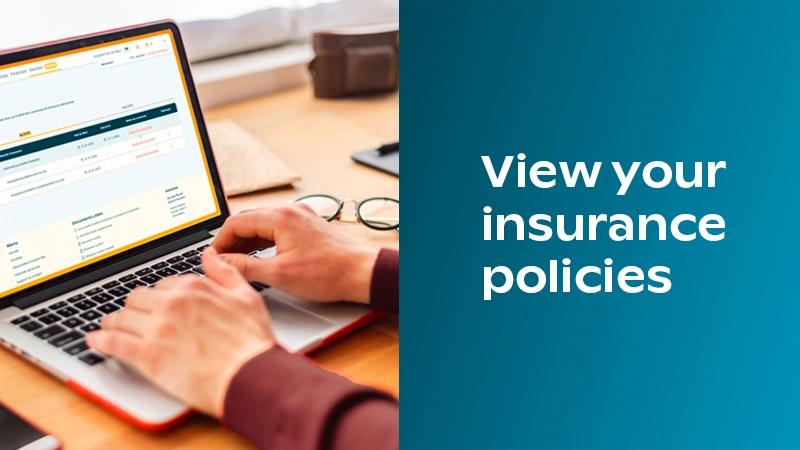
View your insurance policies
Find out how to view the details of your insurance policies and the related general terms and conditions (CGA).
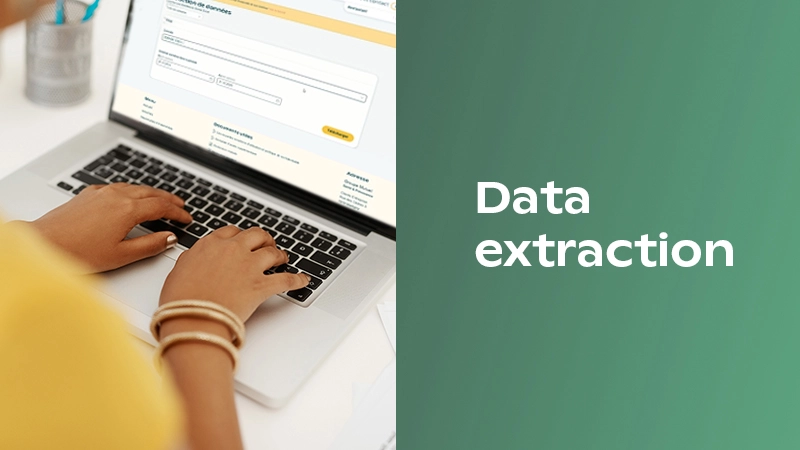
Data extraction
Find out how to use the data extraction feature.
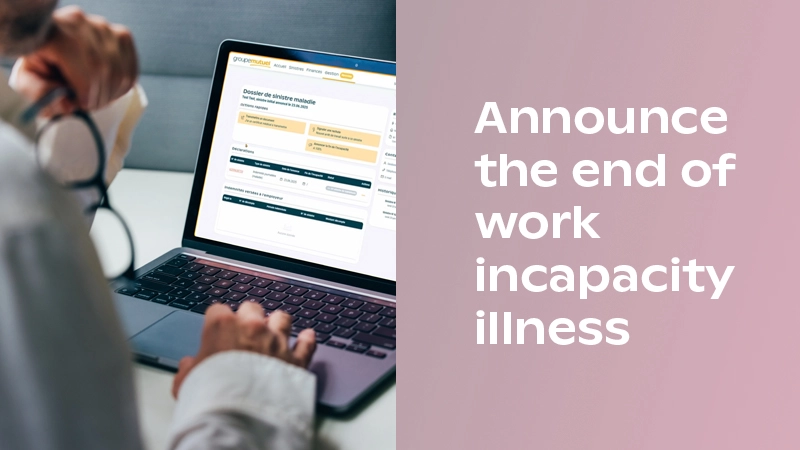
Notify the end of a case of work incapacity – illness
Find out how to notify the end of incapacity for work due to illness.
Owner role
Discover the “owner role” feature, which allows you to manage your Corporate Customer Area more independently.

With the LPP/BVG Portal, you can view the details of insured employees’ contributions, manage employee entry and exit, and update employees’ personal data. An important online tool for managing your occupational pension benefits contract.
Access the LPP/BVG PortalFind answers to the most frequently asked questions about your Corporate Customer Area. Select a topic to view the information you need.
If you’ve lost your password, you can use the “Have you forgotten your password” feature on the login page. If you’ve also lost your username, you can contact your assigned Contract Manager or call 0848 803 777.
Your dedicated Contract Manager is available to answer your questions. If you have any questions regarding the contents of a claim form or a daily benefit statement, your Health Manager can assist you.
Watch the tutorial videos on the dedicated page.
When you sign your policy, you can choose who will be the owner of your company’s account. This person will be able to create, modify, and delete access rights, as well as view all information related to your contracts and employees.
If you have the “Owner” role, you can add, edit, or remove user access from the “User Management” tab. If you do not see this feature but need it, please contact your assigned Contract Manager so your permissions can be adjusted.
If you are an administrator or owner, you can view the list of users who have access to the platform by clicking on the "User Management" tab.
Watch the tutorial videos on the dedicated page.
You can refer to the status of your invoices in the table available under the “Finances” tab. If your invoice is marked as “Paid”, no action is required on your part. Otherwise, the invoice may appear with one of the following statuses: “To be paid”, “Overdue”, or “Cancelled”. An invoice marked as “Cancelled” may have already been paid.
This may be due to an endorsement that took effect after the policy was issued (document available for download soon).
Share